

Show reviews in your store
Reviews are shown with two theme blocks. No code: you add them from the Shopify editor and they pick up your store’s font and colors.
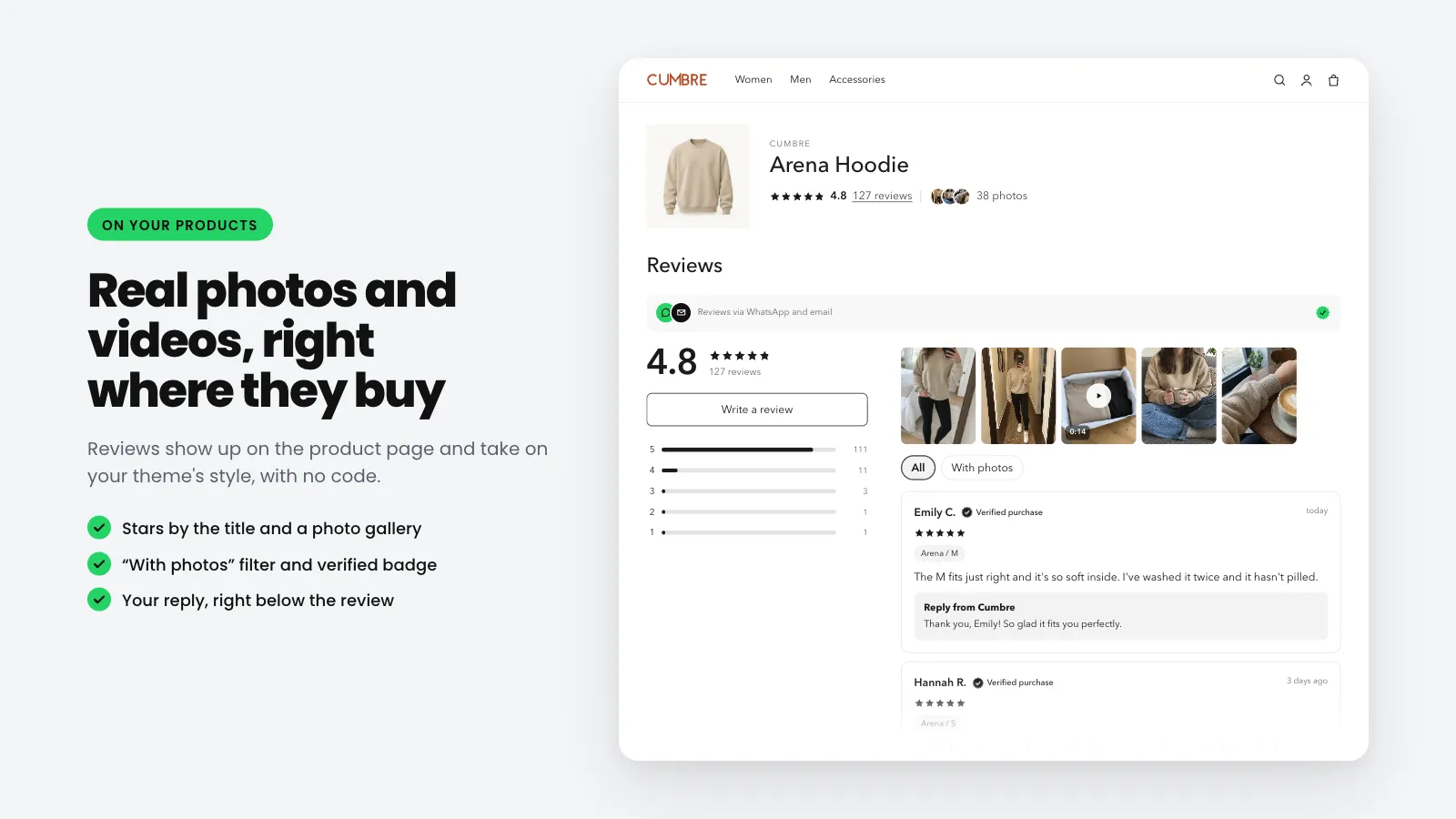
| Block | Where it goes | What it shows |
|---|---|---|
| Leadit Reviews stars | Under the product title | The average, how many reviews there are and how many customer photos. Tapping it scrolls down to the reviews. |
| Leadit Reviews reviews | Below the product | The summary, the strip of photos and videos, the filters, each review with its reply and the button to write one. |
Add them in one click
Section titled “Add them in one click”-
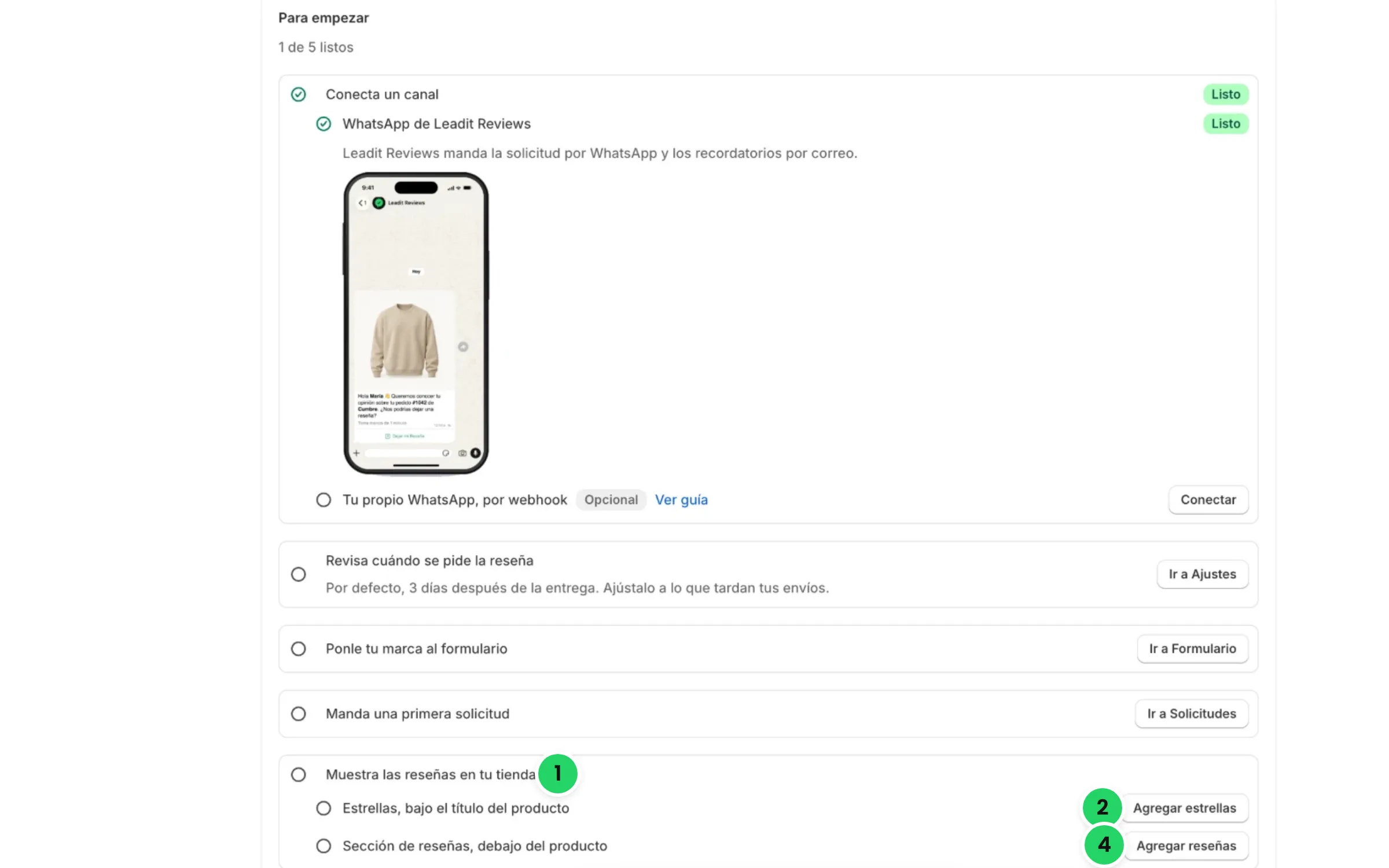
In the app, open Home. In Get started, find Show reviews in your store.
-
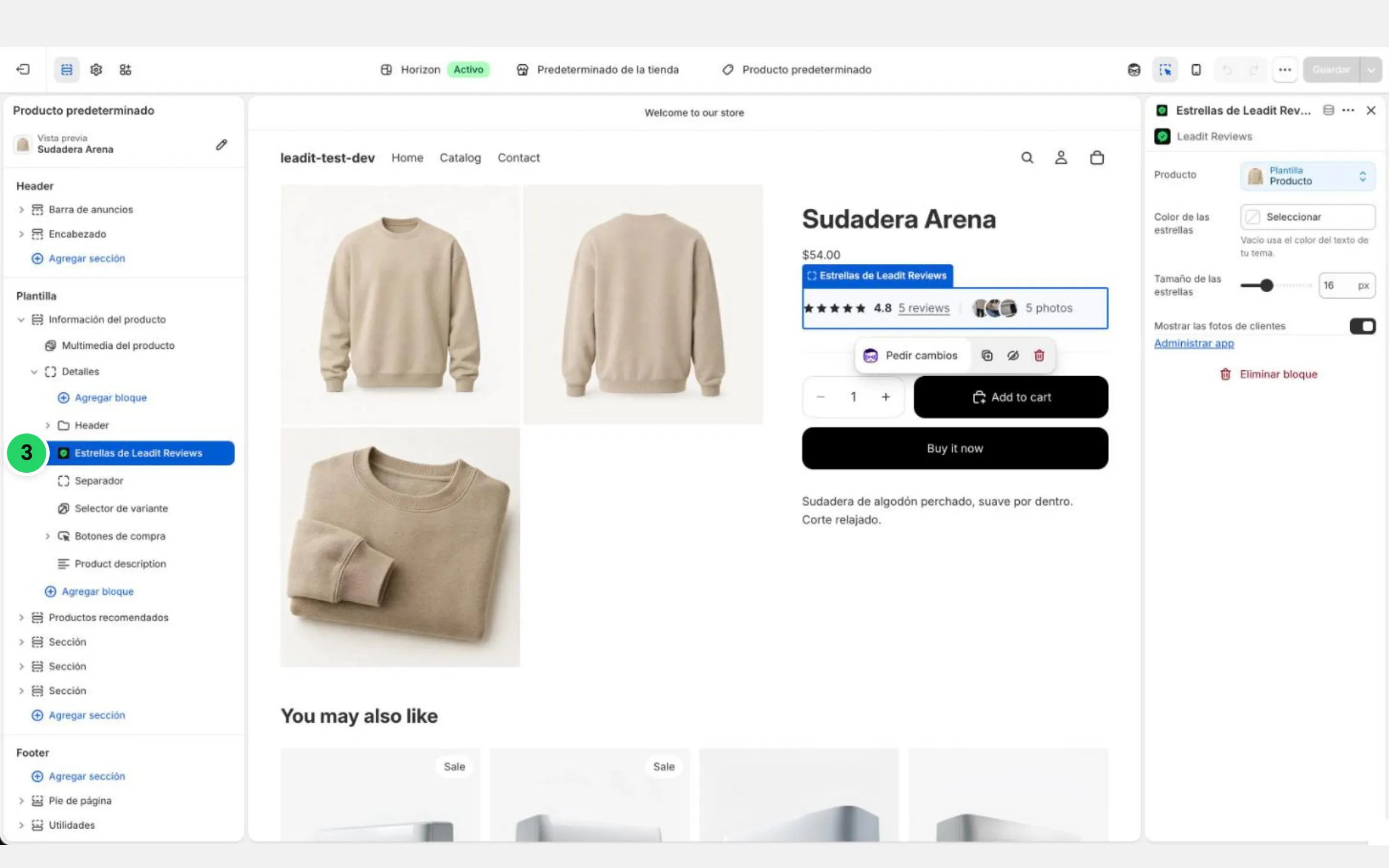
Tap Add stars. Your theme editor opens with the block already placed on the product page.
-
Shopify puts it at the end of the section. Drag it where you want it (the stars work best right under the title) and tap Save.
-
Go back to the app and do the same with Add reviews.
If you’d rather do it by hand
Section titled “If you’d rather do it by hand”In Shopify, go to Online Store → Themes → Customize, open a product template, tap Add block (or Add section) and find them in the Apps tab.
Stars in the catalog
Section titled “Stars in the catalog”The stars can also go on each product in your collections, so your customer sees the reviews before opening the product. This step is manual: there’s no one-click button.
-
In Shopify, go to Online Store → Themes → Customize and, at the top, pick the Collection template.
-
In the left sidebar, open the Collection section and then Product card.
-
Tap Add block, go to the Apps tab and pick Leadit Reviews stars.
-
Drag it below the product name.
-
Tap the block and check the Product setting: it should say Closest · Product. That way each card shows the stars of its own product.
-
Tap Save.
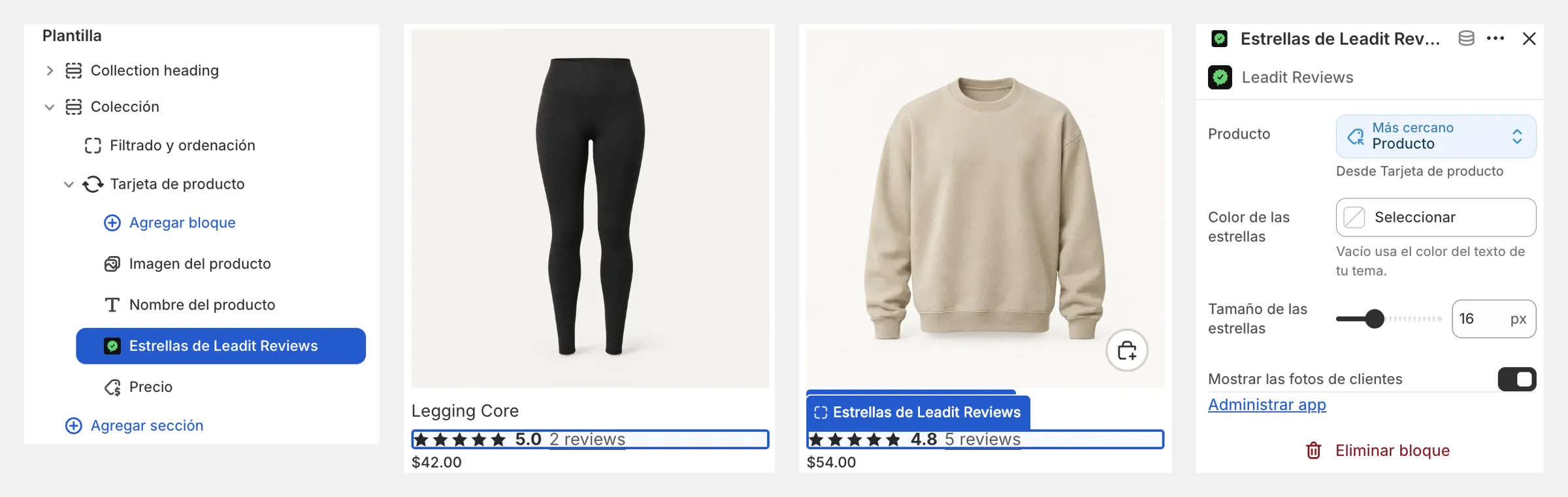
In the catalog the block looks more compact: just the average and how many reviews there are, no photos. Tapping it takes your customer straight to the reviews on the product page.
Settings for each block
Section titled “Settings for each block”When you tap the block in the theme editor, its settings show up on the right.
Leadit Reviews stars
| Setting | What it does |
|---|---|
| Star color | Empty uses your theme’s text color. |
| Star size | From 12 to 24 px. |
| Show customer photos | Shows how many customer photos the product has, with a link to see them. |
Leadit Reviews reviews
| Setting | What it does |
|---|---|
| Heading | Empty says “Reviews”. |
| How reviews were requested | The line under the heading: “Reviews via WhatsApp and email”, “via WhatsApp” or “via email”. |
| Star color | Empty uses your theme’s text color. |
| “Verified by Shop” color | Purple, black or gray. |
| Corner roundness | From 0 to 24 px, to match your theme. |
Visitor reviews
Section titled “Visitor reviews”If a product has no reviews yet, the section invites people to write the first one. Any visitor can write one from the product page with the Write a review button:
- They add their stars, their review, their name and their email.
- We send them an email to confirm it. If it isn’t confirmed, it doesn’t exist: that way a bot can’t flood your moderation.
- If that email bought the product in your store, it comes in as a verified purchase and follows your publishing rules. If not, it waits for you to review it.
Don’t want visitor reviews? Turn them off in Settings → Visitor reviews. The button disappears and a product page with no reviews doesn’t show the section.
I added the blocks and I don’t see anything. The stars only show up when the product has at least one published review. Try a product that already has one.
Does it slow down my store? No. The stars weigh less than 2 KB and the review list only loads when your customer scrolls down to it.
Is the Leadit Reviews logo visible? Only a small seal next to the section heading. The rest is your reviews in your theme’s style.