

The WhatsApp template in Meta
To write to a customer from your WhatsApp Business number, Meta requires an approved template. Here we build it together: a short message, with the product photo, the customer’s name, their order number and a button that opens their form.
What it will look like
Section titled “What it will look like”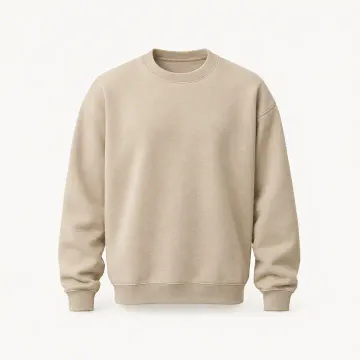 1
Hi {{v1}}2 👋 We'd love to hear what you think of your order {{v2}}3. Could you leave us a review?
It takes less than a minute. Reply STOP to opt out.
- 1Header: imageThe product photo. It comes from
data.products[0].image_url. - 2Variable {{v1}}: the nameFrom
data.customer.name. If it's empty, send “there” or use another template without the name. - 3Variable {{v2}}: the orderFrom
data.order.name, as the customer sees it:#1042. - 4Button with a dynamic URLIn Meta:
https://reviews.leadit.tech/r/and type Dynamic. When sending,data.tokengoes in its{{1}}.
1Hi Maria2 👋 We'd love to hear what you think of your order #10423. Could you leave us a review?
It takes less than a minute. Reply STOP to opt out.
- 1Header: imageThe product photo. It comes from
data.products[0].image_url. - 2Variable {{v1}}: the nameFrom
data.customer.name. If it's empty, send “there” or use another template without the name. - 3Variable {{v2}}: the orderFrom
data.order.name, as the customer sees it:#1042. - 4Button with a dynamic URLIn Meta:
https://reviews.leadit.tech/r/and type Dynamic. When sending,data.tokengoes in its{{1}}.
Before you start: the button is a dynamic link
Section titled “Before you start: the button is a dynamic link”Each order has its own link. In the template you don’t write a full link: you pick a button with a dynamic URL, write only the fixed part and Meta leaves a slot at the end, {{1}}. When each message is sent, the order’s token goes in that slot. We send it to you ready in the webhook, in data.token.
{{1}} on its own.Variable. The token: it changes with every order and comes ready in data.token.Create the template, step by step
Section titled “Create the template, step by step”-
Open WhatsApp Manager.
In business.facebook.com: WhatsApp Manager → Message templates → Manage templates → Create template.
-
Pick Utility and Default.
The request is about an order your customer already placed: that’s Utility, not Marketing. Below, leave Default selected (“Send messages about an existing order or account”) and tap Next.
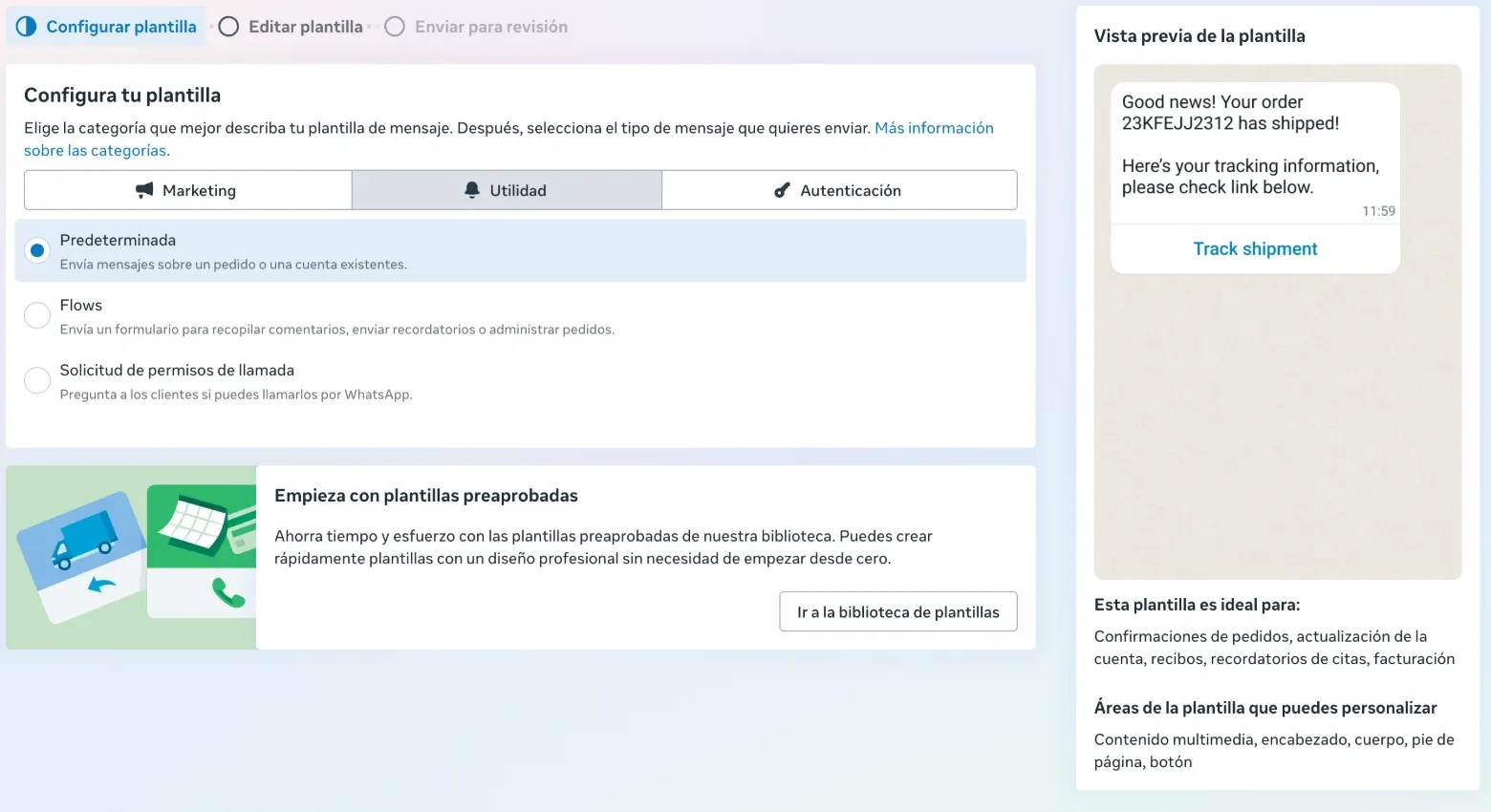
Category Utility, type Default. The screenshots are from Meta in Spanish. -
Give it a name, a language and the image.
- Name: lowercase, for example
revieworreview_request. - Language: your customers’ language, for example English (US). If you sell in other languages, create one template per language with the same name.
- Type of variable: Name.
- Media sample: Image, and upload a sample photo of one of your products. When sending, your system puts in the photo of what each customer bought.
- Header: leave it empty; the image already works as the header.
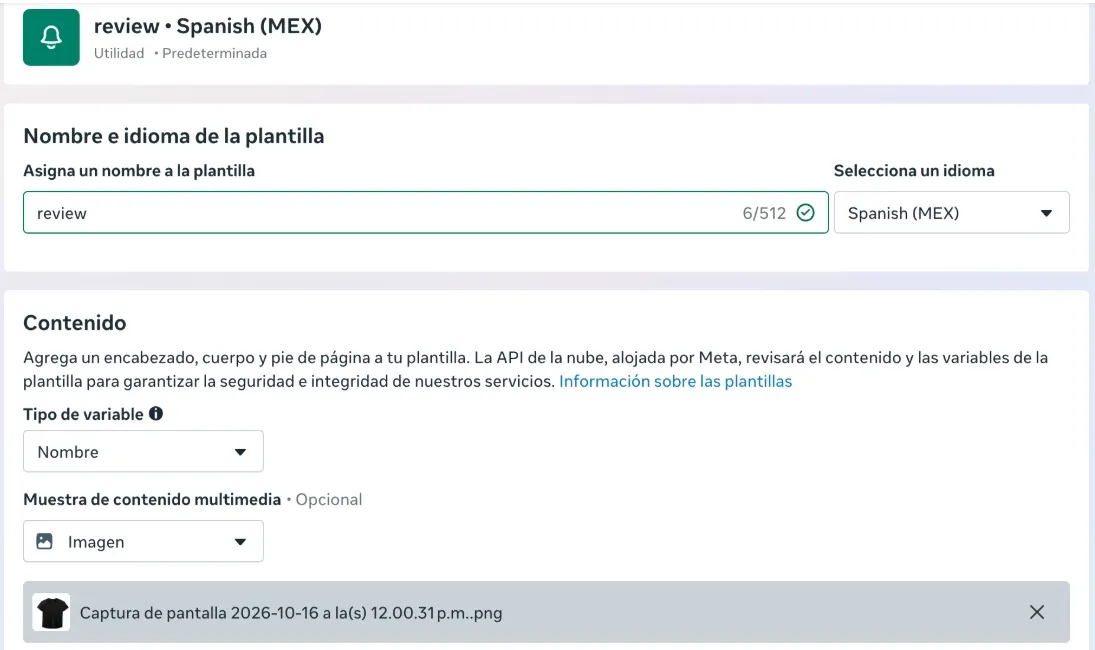
- Name: lowercase, for example
-
Write the body with two variables.
Write the text and, where the name and the order go, tap + Add variable. Meta names them
{{v1}}and{{v2}}:Hi *{{v1}}* 👋 We'd love to hear what you think of your order *{{v2}}*. Could you leave us a review?The asterisks make the text bold. In Variable samples, use examples that aren’t a real customer:
Mariafor{{v1}}and#1042for{{v2}}. -
Add the footer.
It takes less than a minute. Reply STOP to opt out.The opt-out part is optional, but we recommend it: telling your customer how to stop getting messages is good practice and helps you comply with privacy laws. It fits in the footer’s 60 characters.
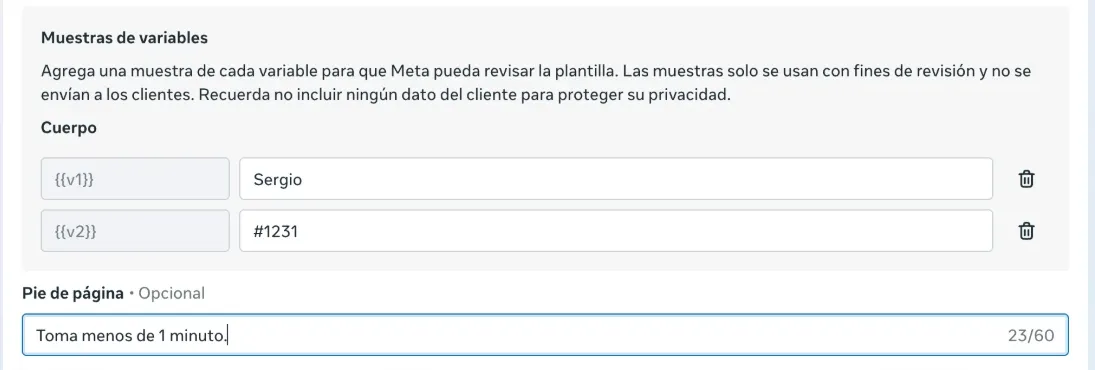
-
Add the button with a dynamic URL.
In Buttons, tap + Add button and pick Visit website. Fill it in like this:
Field What you enter Type of action Visit website Button text Leave my reviewURL type Dynamic Website URL https://reviews.leadit.tech/r/Sample URL A sample link, below In Add sample URL, paste a made-up link that isn’t a real customer’s:
https://reviews.leadit.tech/r/8Kj2mQx7RrT0vLw3Hn5ZpA1cYb9EuS6dGf4qWk2NtJo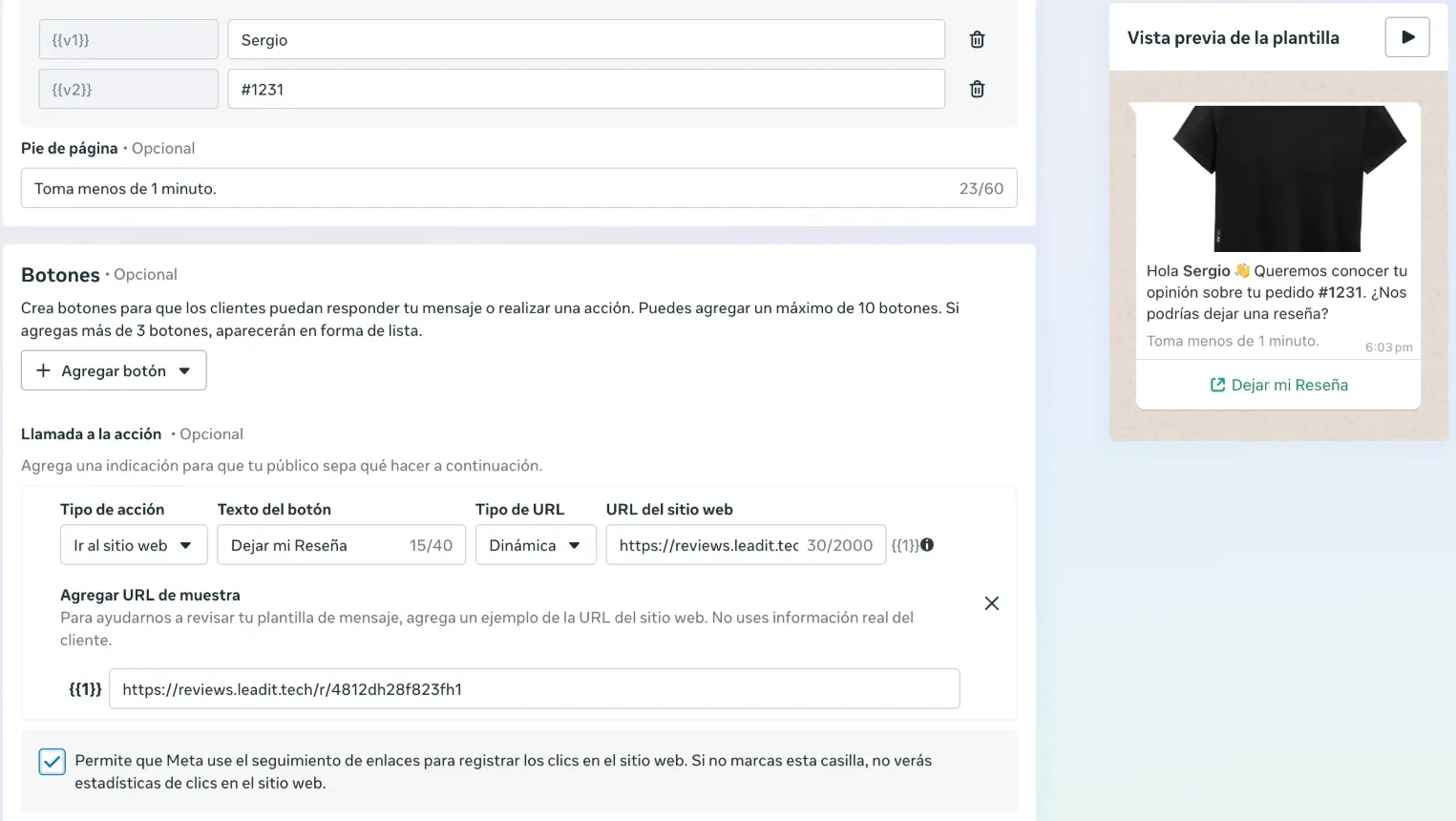
When you pick Dynamic, Meta adds {{1}}on its own, to the right of the field.The link tracking checkbox is optional: if you leave it checked, Meta shows you how many people tapped the button.
-
Submit it for review.
Leave the Validity period as it is. Tap Submit for review: Meta usually answers within minutes, sometimes in a few hours. When the template says Active, you can use it.
When sending: what goes in each variable
Section titled “When sending: what goes in each variable”When the notice from your webhook arrives, your platform fills in the template like this. Everything comes ready in the notice: you don’t have to cut or build anything.
| In the template | What you put | Notice field |
|---|---|---|
| Image | The product photo | data.products[0].image_url |
{{v1}} |
The first name | data.customer.name |
{{v2}} |
The order number | data.order.name |
Button, {{1}} |
The token | data.token |
| Recipient | The phone | data.customer.phone |
| Template language | es, en… |
data.locale (if it’s empty, your store’s) |
So Meta approves it as Utility
Section titled “So Meta approves it as Utility”- Talk only about the order. No discounts, offers, “buy again” or new products: that turns it into Marketing.
- Send it only to people who bought, and once per order. Reminders, with days between them.
- No shortened links (bit.ly and the like): Meta rejects them. The Leadit Reviews link is already short and on its own domain.
- If it’s rejected or moved to Marketing, remove anything that sounds promotional and submit it again. You can request a review from WhatsApp Manager itself.