

Moderate reviews
Every review lands in Reviews in the admin. Your rules decide whether it’s published on its own or waits for you to review it. You can change that decision whenever you want.
- Your customerThey leave a reviewFrom their link, with stars, an opinion, a photo or video.
- Leadit ReviewsWe check itWe look for phone numbers, emails, cards, your blocked words and duplicates.
- Leadit ReviewsWe apply your rulesIt's published on its own or stays pending, based on its stars and what we found.
- ShopifyIt shows up in your storeOnce published, it's visible on the product page.
What gets published on its own
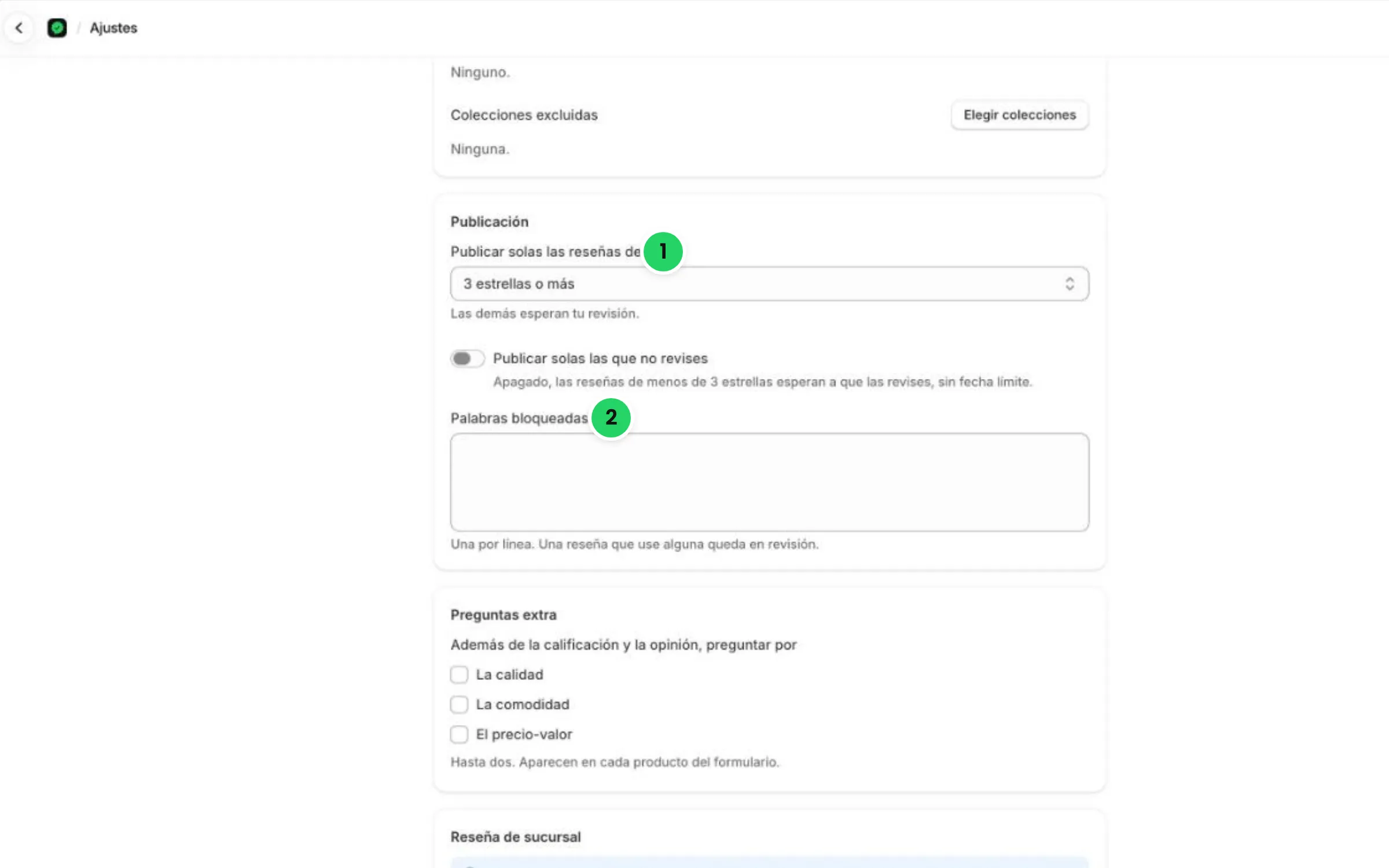
Section titled “What gets published on its own”In Settings → Publishing you choose from how many stars a review is published on its own. It starts at 3 stars or more.
| The review… | What happens |
|---|---|
| Has the stars you chose or more | It’s published on its own. |
| Has fewer stars | It stays pending until you review it. |
| Contains a phone number, an email, something that looks like a card or a blocked word | It stays pending and flagged, whatever its stars. |
| Looks like a repeat (same customer, same product, almost the same text) | It stays pending and flagged. |
Publish the ones you don’t review
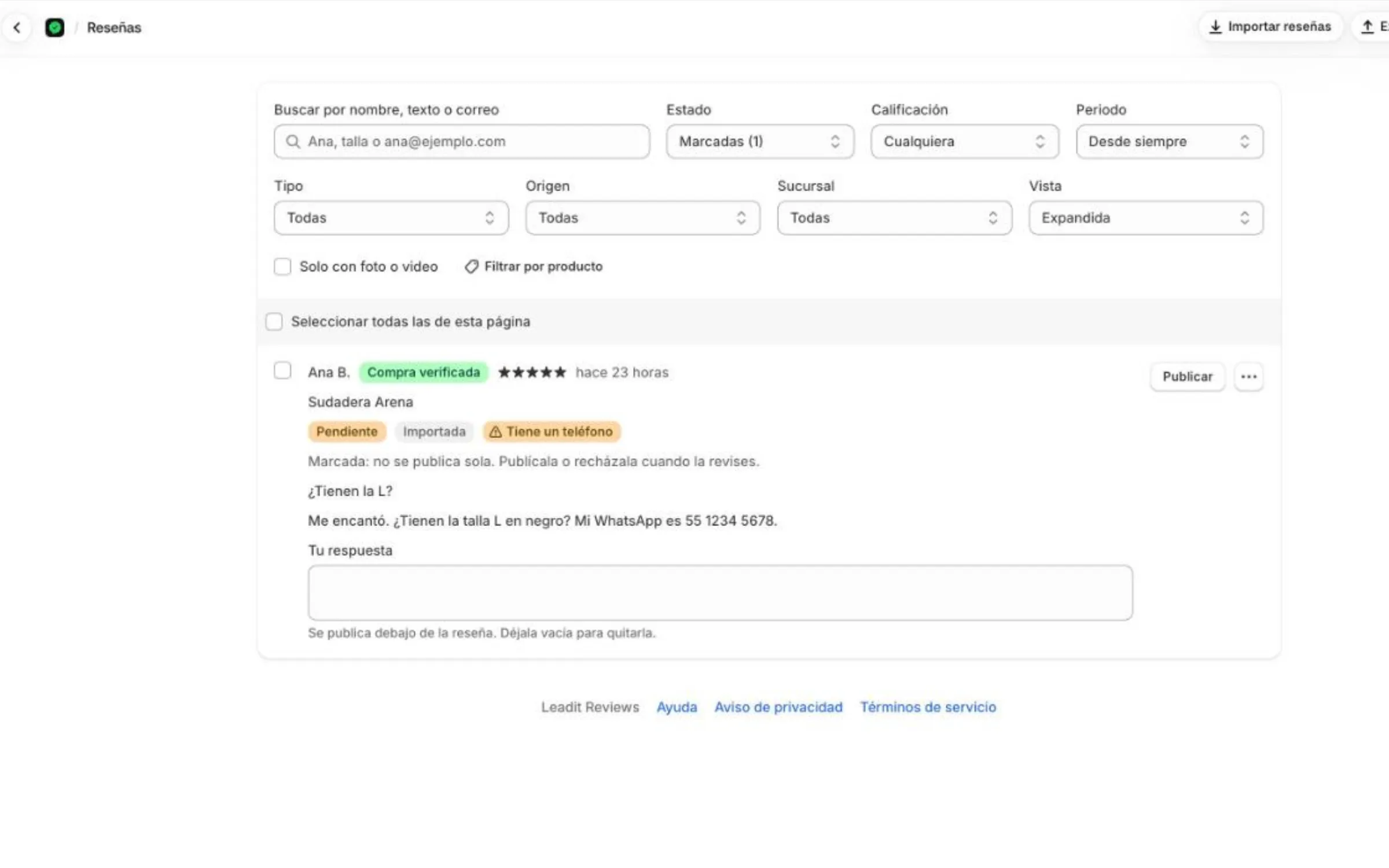
Section titled “Publish the ones you don’t review”If you don’t want low-star reviews to wait forever, turn on Publish the ones you don’t review and choose how many days. After that time they’re published even if nobody looked at them. Flagged ones keep waiting for your review.
Blocked words
Section titled “Blocked words”In Settings → Publishing → Blocked words, write one word per line. A review that uses any of them gets flagged. Capitals and accents don’t matter: “Pésimo” and “pesimo” are the same word.
Find what you need to review
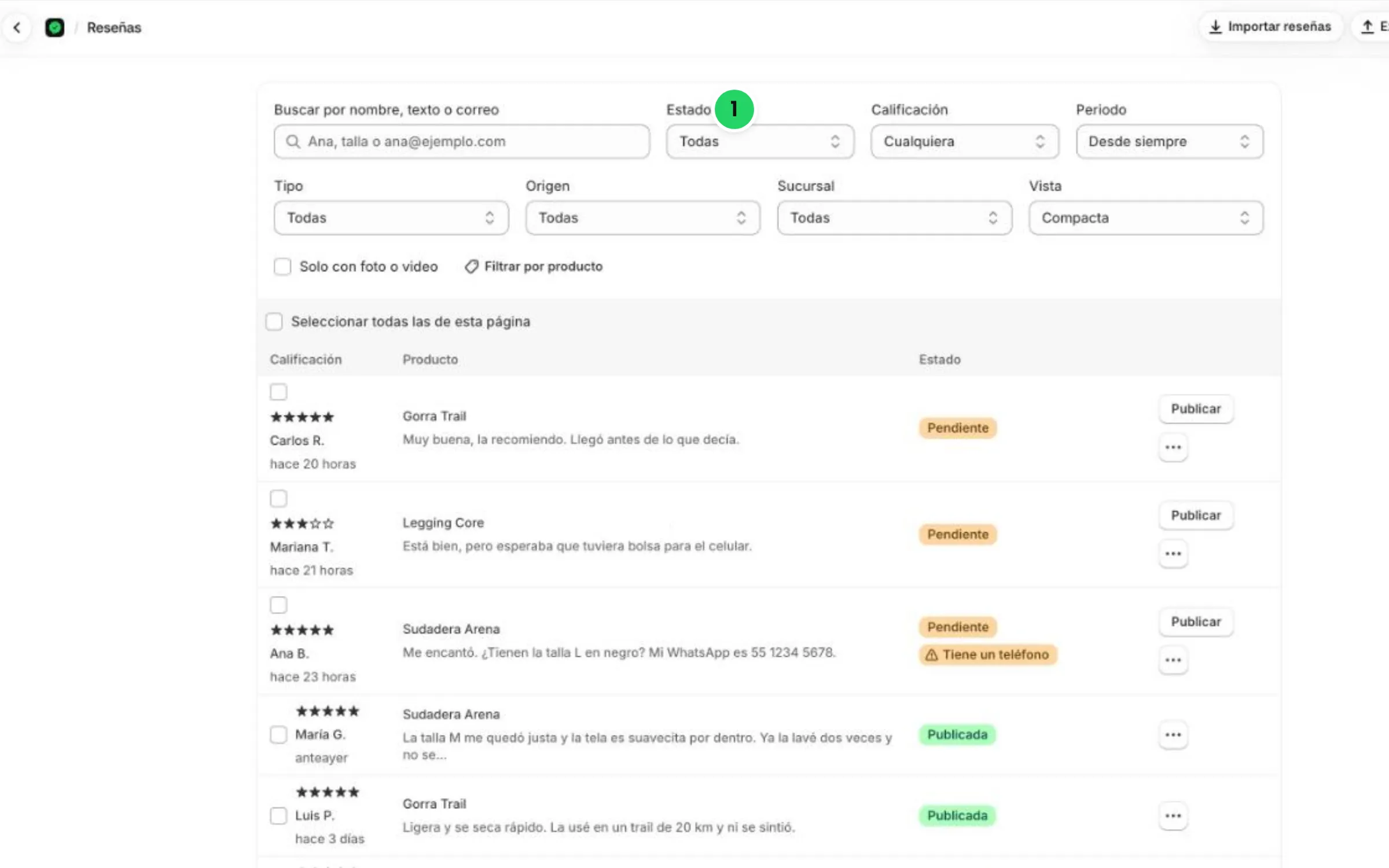
Section titled “Find what you need to review”At the top of the Reviews list, the Status filter lets you see each group and how many there are in each one:
| Status | What they are |
|---|---|
| Pending | Waiting for your review. |
| Flagged | Pending with something to check: personal data, a blocked word or a possible duplicate. |
| Published | Visible in your store. |
| Rejected | Not published. They keep the reason you wrote. |
| Spam | The ones you marked as spam. |
| Store reviews | Feedback on purchases at your physical store. Only you see them. |
You can also filter by rating, product, source, period or only the ones with a photo or video, and search by name, text or email. When there are a lot, switch the View to Compact.
If there are flagged reviews, Home lets you know.
What you can do with each review
Section titled “What you can do with each review”| Action | What it does |
|---|---|
| Publish | Shows it in your store. Works for pending, rejected and spam. |
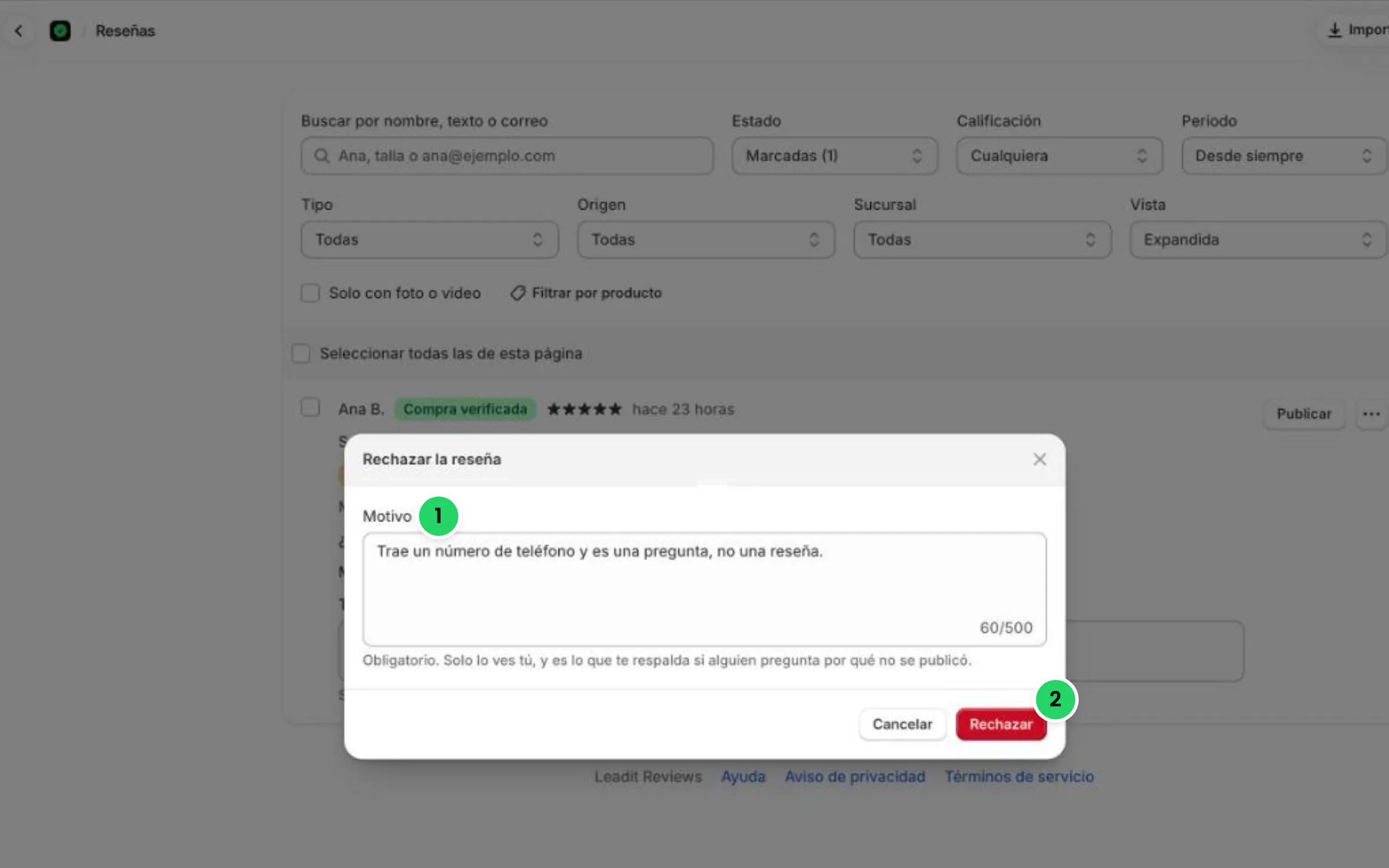
| Reject | Removes it from your store. It asks for a reason that only you see: it’s what backs you up if someone asks why it wasn’t published. |
| Mark as spam | Sets it apart from the others. It isn’t published. |
| Delete | Erases it forever with its photos and videos. It can’t be undone. |
| Your reply | Your reply is published below the review, with your store’s name. Leave it empty to remove it. |
To do it with several at once, select them with each one’s checkbox (or all on the page) and pick the action.
Reviews that always wait for your review
Section titled “Reviews that always wait for your review”Some reviews don’t have a verified purchase behind them. They aren’t published on their own even with 5 stars:
- Those from visitors who wrote from the product page and whose email didn’t buy that product. If their email did buy it, they come in as a verified purchase and follow your usual rules.
- Those that come in through the API with no order number.
Store reviews
Section titled “Store reviews”If you sell in a physical store with Shopify POS, the form can also ask how your customer was treated at the store. That feedback is internal: you see it in Reviews → Store reviews, it’s never published and it can’t be replied to. You turn it on and off in Settings → Store review, and it’s included in the Pro plan.
Step by step: your first review pass
Section titled “Step by step: your first review pass”-
Open Reviews and in Status pick Flagged. Check these first: they’re the ones that may contain personal data.
-
Read each one. If the personal data is the only problem, leave it pending: your customer can fix it from the same link while it’s still valid, and you publish it afterwards. If not, reject it with the reason, for example “Contains a phone number”.
-
In Status pick Pending and check the low-star ones. Publish them and reply: a good reply to a complaint sells more than the complaint takes away.
-
In Settings → Publishing, check from how many stars they’re published on their own and add your blocked words.